How to Deploy
This guide walks you through both deployment modes in Goosehead Fastlane:
- the promotion lane from
developthroughdev -> qa -> uat -> staging -> production - the release lane for manual
release/*validation indev,qa, oruat
Prerequisites
Before deploying, make sure you have:
- GitLab access to the
goosehead-insurance/custom-dev/goosehead-fastlaneproject with Maintainer or Developer role - dotenv-vault CLI installed:
npm install -g dotenv-vault(or usenpx dotenv-vault@latest) - Heroku team membership on the
gooseheadteam (for viewing logs and debugging) - dotenv.org account with access to the goosehead-fastlane project (for managing secrets)
How Secrets Work
Fastlane uses dotenv-vault for encrypted secret management. Instead of scattering environment variables across platforms, all secrets live in a single encrypted file that's safe to commit.
The Two Pieces
| Piece | Where It Lives | Safe to Commit? | Purpose |
|---|---|---|---|
.env.vault | In the Git repo | Yes | Encrypted blobs of secrets, one per environment |
DOTENV_KEY | GitLab CI/CD Variables | No, never | The decryption key that unlocks a specific environment's secrets |
Neither piece is useful alone. The .env.vault file without a DOTENV_KEY is just unreadable ciphertext. A DOTENV_KEY without the .env.vault has nothing to decrypt.
Security Model
This is a split-knowledge model. An attacker would need access to both the Git repo and the GitLab CI variables to read any secrets. Compromising one without the other reveals nothing.
Frontend vs API Gateway
The two app types decrypt secrets at different stages:
Frontend apps decrypt at build time -- the DOTENV_KEY is passed as a Docker build argument during CI, and the resulting static files have environment-specific values baked in.
The API gateway decrypts at runtime -- the Docker image ships with .env.vault inside it, and the DOTENV_KEY is set as a Heroku config var on each app. When the container starts, node -r dotenv/config main.js decrypts the vault on the fly.
Environment Promotion Chain
Code flows through five environments before reaching production:
| Environment | Heroku Prefix | Trigger | Approval Required | dotenv Environment Name |
|---|---|---|---|---|
| Dev | dev- | Automatic on merge to develop | None | development |
| QA | test- | Manual | QA lead / team | test |
| UAT | uat- | Manual | QA lead / team | uat |
| Staging | preprod- | Manual | PM / tech lead | preprod |
| Production | prod- | Manual | Tech lead + PM | prod |
CI Prerequisites for Vault Auto-Build
The pipeline automatically rebuilds .env.vault from dotenv.org before every deploy using the build-vault job. This requires a DOTENV_ME credential in GitLab CI/CD variables.
Setting Up DOTENV_ME
- Get your
DOTENV_MEvalue from the.env.mefile in your local repo (theme_...token), or generate a new one by runningnpx dotenv-vault@latest loginwith an admin account - Navigate to GitLab > goosehead-fastlane > Settings > CI/CD > Variables
- Add the variable:
| Key | Value | Protected | Masked | Expand |
|---|---|---|---|---|
DOTENV_ME | me_... | Yes | Yes | No |
This only needs to be done once. The build-vault job uses this to authenticate with dotenv.org and rebuild the encrypted vault before deploy jobs run.
Setting Up DOTENV_KEY in GitLab
Each environment needs its own DOTENV_KEY configured as a GitLab CI/CD variable. You only need to do this once per environment (or when rotating keys).
Step 1: Get the Keys
Run this from the repo root to see all keys:
npx dotenv-vault@latest keys
Or get a specific environment's key:
npx dotenv-vault@latest keys development
npx dotenv-vault@latest keys test
npx dotenv-vault@latest keys uat
npx dotenv-vault@latest keys preprod
npx dotenv-vault@latest keys production
Each command outputs a URI like:
dotenv://:key_abc123...@dotenv.org/vault/.env.vault?environment=production
Step 2: Add to GitLab
- Navigate to GitLab > goosehead-fastlane > Settings > CI/CD
- Expand the Variables section
- Click Add variable for each environment:
| Key | Value | Protected | Masked | Expand |
|---|---|---|---|---|
DOTENV_KEY_DEVELOPMENT | dotenv://:key_...?environment=development | Yes | Yes | No |
DOTENV_KEY_TEST | dotenv://:key_...?environment=test | Yes | Yes | No |
DOTENV_KEY_UAT | dotenv://:key_...?environment=uat | Yes | Yes | No |
DOTENV_KEY_PREPROD | dotenv://:key_...?environment=preprod | Yes | Yes | No |
DOTENV_KEY_PROD | dotenv://:key_...?environment=production | Yes | Yes | No |
When configured correctly, your CI/CD Variables page should look like this:
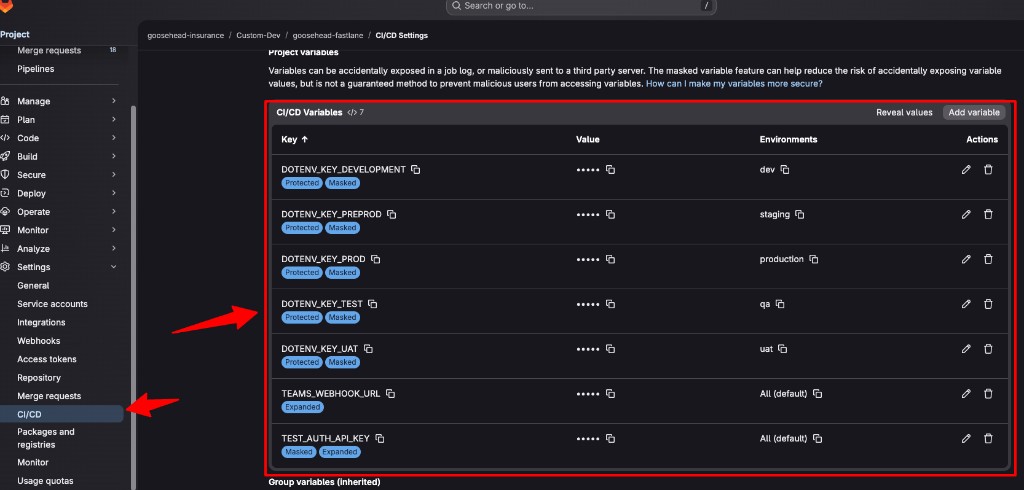
Protected means the variable is only available on protected branches (develop, main). Masked means the value is hidden in job logs.
Step 3: Set DOTENV_KEY on Heroku (API Gateway Only)
The API gateway decrypts at runtime, so each Heroku app needs DOTENV_KEY as a config var:
heroku config:set DOTENV_KEY='dotenv://:key_...?environment=development' -a dev-fastlane-api-gateway
heroku config:set DOTENV_KEY='dotenv://:key_...?environment=test' -a test-fastlane-api-gateway
heroku config:set DOTENV_KEY='dotenv://:key_...?environment=uat' -a uat-fastlane-api-gateway
heroku config:set DOTENV_KEY='dotenv://:key_...?environment=preprod' -a preprod-fastlane-api-gateway
heroku config:set DOTENV_KEY='dotenv://:key_...?environment=production' -a prod-fastlane-api-gateway
Deploying Step by Step
1. Merge to Develop
Every deployment starts with merging a branch into develop. This automatically triggers the pipeline.
2. Monitor the Dev Deploy
- Open the pipeline in GitLab > CI/CD > Pipelines
deploy-devruns automatically for the 3 core appsrun-migrations-devruns automatically ifprisma/files changedrun-seed-devis available as a manual job if you need to reseed
3. Promote Through Environments
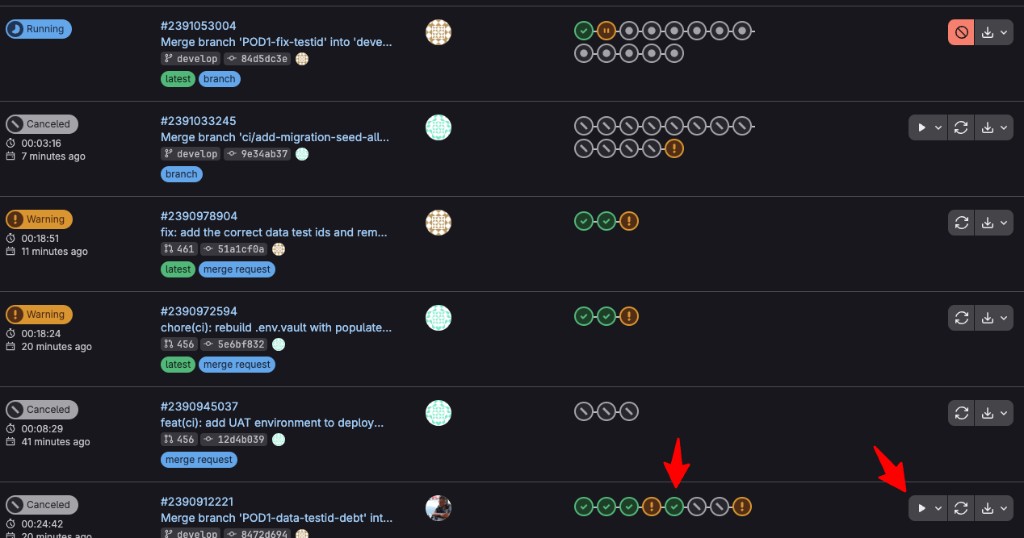
To promote to the next environment, find the pipeline and click the Play button on the appropriate deploy job:
- QA: Click Play on
deploy-qa-- requires QA lead approval - UAT: Click Play on
deploy-uat-- requires QA lead approval - Staging: Click Play on
deploy-staging-- requires PM / tech lead approval - Production: Click Play on
deploy-prod-- requires tech lead + PM approval
In the promotion lane, migrations run automatically only after deploy-dev and production deploy jobs when eligible. Seeds are always manual.
4. Verify
After each environment's deploy completes, verify the app is healthy:
- Check the deploy job logs for
Deployment successful (HTTP 200) - Visit the app URL (e.g.,
https://test-fastlane-portal.goosehead.com) - Check the migration job logs if database changes were involved
Running the Release Lane
Use this when you need to deploy a release/* branch to a lower environment without entering the normal develop promotion path through qa, uat, staging, and production.
1. Open Run Pipeline
Navigate to Build > Pipelines, then click Run pipeline.
2. Configure the Inputs
| Field | Value |
|---|---|
| Run for branch name or tag | release/<name> |
Input: target_env | dev, qa, or uat |
Input: run_migrations | true only when you want the manual migration job to appear |
3. Start the Pipeline
The pipeline validates that:
- the source is GitLab Run pipeline
- the selected ref matches
release/* - the target environment is one of the supported lower environments
- the required deploy secrets are available to the pipeline
Invalid combinations fail before the image build starts.
4. Deploy the Selected Environment
Only one release deploy job appears:
| Input | Manual Job |
|---|---|
target_env=dev | deploy-dev-release |
target_env=qa | deploy-qa-release |
target_env=uat | deploy-uat-release |
Click Play on the matching job. qa and uat still require their protected-environment approvals.
5. Run Migrations If Needed
If run_migrations=true, the matching manual migration job appears after deploy:
run-migrations-dev-releaserun-migrations-qa-releaserun-migrations-uat-release
These jobs are explicit in the release lane and do not depend on prisma diff detection.
Managing Secrets
Managing secrets (adding, changing, removing, rebuilding the vault) requires admin/lead access on dotenv.org. Developers have pull-only access. See Updating Environment Variables for the full access control model and how to request changes.
Adding or Changing a Secret
-
Open the dotenv.org dashboard:
npx dotenv-vault@latest open <environment>Replace
<environment>withdevelopment,test,uat,preprod, orproduction. -
Edit the secret in the web UI
-
Trigger a deploy -- the
build-vaultCI job automatically rebuilds the vault from dotenv.org before any deploy job runs. No manualbuildorcommitneeded.
Adding a New Environment
- Add the environment on dotenv.org (project settings)
- Populate secrets via the web UI
- Get the key:
npx dotenv-vault@latest keys <new-env> - Add
DOTENV_KEY_<ENV>to GitLab CI/CD Variables (Protected + Masked) - For the API gateway, set
DOTENV_KEYon the Heroku app viaheroku config:set
Redeploying
Retry a Failed Job
If a deploy job failed (network issue, Heroku timeout, etc.), you can retry it from the pipeline UI:
- Open the failed pipeline
- Click the Retry button on the failed job
- The job reruns with the same context (same affected apps, same commit)
Redeploy Without New Code
To redeploy the same code (e.g., after changing a secret in the vault), you have two options:
Option A: Retry from the existing pipeline
Find the last pipeline for the commit you want to redeploy and retry the deploy job.
Option B: Trigger a new pipeline
- Go to CI/CD > Pipelines > Run pipeline
- Select branch
developfor the promotion lane, or arelease/*branch for the release lane - For release-lane redeploys, set
target_envto the lower environment you want - Run the pipeline
- If you also need release-lane migrations, set
run_migrations=true
Troubleshooting
Migration job needed but didn't apply changes
The run-migrations-* jobs always invoke npx prisma migrate deploy against the target database, which is idempotent. If the job reports "No pending migrations to apply" but you expected changes, verify the migration is committed under prisma/migrations/ on the deployed ref.
Empty DOTENV_VAULT_* in .env.vault
The environment exists on dotenv.org but has no secrets populated. Open the environment in the web UI and add your secrets. The next deploy will automatically rebuild the vault with the new values.
npx dotenv-vault@latest open <environment>
build-vault Job Fails
The build-vault CI job rebuilds .env.vault from dotenv.org before every deploy. If it fails:
- Check that
DOTENV_MEis set in GitLab > Settings > CI/CD > Variables (Protected + Masked) - Verify dotenv.org is reachable (check status.dotenv.org)
- If dotenv.org is down, the pipeline falls back to the
.env.vaultcommitted in Git
"DOTENV_KEY is not set" in Heroku Logs
The API gateway's Heroku app is missing the DOTENV_KEY config var. Set it:
npx dotenv-vault@latest keys <environment>
heroku config:set DOTENV_KEY='<the key URI>' -a <heroku-app-name>
Deploy Job Shows "Skipping" for All Apps
All apps are deployed on every pipeline run, so this should not occur under normal circumstances. If a deploy job was skipped, retry the job or trigger a new pipeline.
Build Fails with "VITE_* undefined"
The DOTENV_KEY for that environment is either missing from GitLab CI variables or the vault doesn't contain the secret. Verify both:
- Check GitLab CI variables: Settings > CI/CD > Variables
- Check vault contents:
npx dotenv-vault@latest open <environment>and confirm theVITE_*variable exists - Check the
build-vaultjob logs to ensure the vault was rebuilt successfully